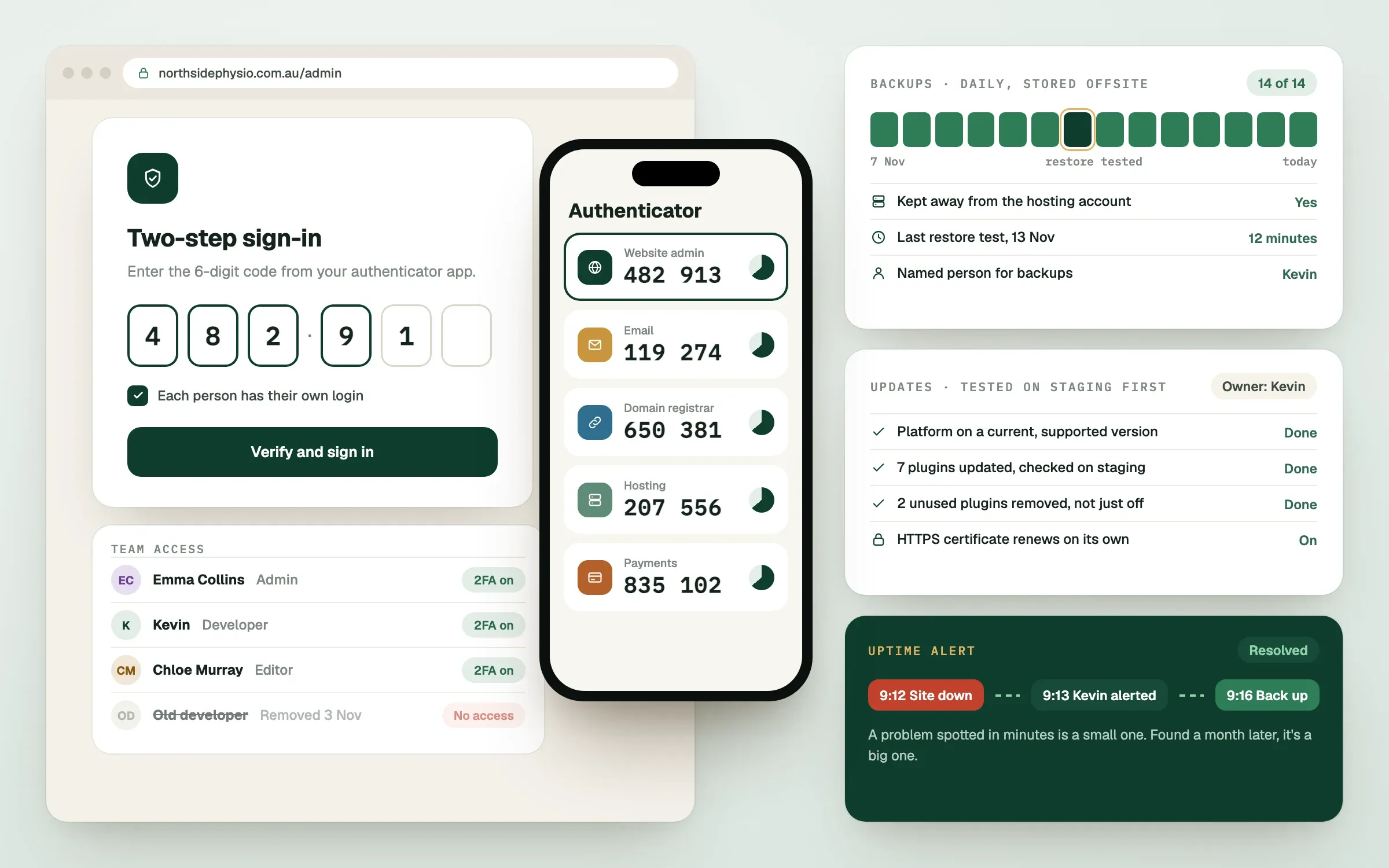
Here is a website security checklist for small business owners that you can work through in about an hour. Website security means keeping your site, your customers' information and your accounts safe from people and software that should not have access. Many small business sites are not attacked by a person who has chosen you. They are hit by automated tools that scan the internet for easy openings, such as old software or weak passwords. That is good news, because easy openings are fixable.
Why do small business websites get hacked?
Small business websites get hacked mainly because they are easy to reach and often under-maintained. Automated tools try thousands of sites a day. They look for outdated plugins, reused passwords and unprotected login pages, and they move on when they find nothing.
Common consequences include your site being used to send spam, showing spam pages to Google, redirecting visitors somewhere harmful, or being locked until you pay. Even a short outage costs trust, particularly if you take bookings or payments through the site.
Are your accounts and passwords secure?
Account access is the most common weak point, so start here. If an attacker gets into your hosting, domain or website admin account, everything else is irrelevant.
// checklist0 of 6 done
Is your software up to date?
Out-of-date software is the second most common way sites are compromised, so keep it current. Your website runs on software such as a content management system, themes and plugins, and each of them gets fixes when a weakness is found.
// checklist0 of 5 done
A staging copy is a private duplicate of your site used for testing changes before they go live. Good developers use one for any meaningful change.
Can you recover if something goes wrong?
A tested backup is your safety net, and many sites have a backup that has never been restored. Without a working backup, a hack, a faulty update or a deleted file can mean starting again.
// checklist0 of 5 done
Is data protected when it is entered and stored?
Anything customers type into your site, such as contact forms, bookings and payments, needs protecting on the way in and where it is kept.
// checklist0 of 6 done
Would you notice a problem, and know what to do?
Security is also about speed. A problem spotted in an hour is a small one. A problem found a month later is a big one.
// checklist0 of 4 done
What should you give to your developer?
Some items on this list are best handed to the person who runs your site. Send them the list, ask which boxes are already ticked, and agree a date for the rest.
| You can do today | Ask your developer to do |
|---|---|
| Turn on two-factor sign-in | Set up and test automatic backups |
| Remove old users and unused accounts | Apply updates on a staging copy first |
| Use a password manager | Set up monitoring and alerts |
| Check who owns your domain | Review forms, HTTPS and data storage |
If you do not have a developer you trust to take responsibility for these, that is worth fixing first.
Finished this read?
- OpenedToday
- FinishedNot yet
Written by
Kevin MatthewsHead of Development
Kevin leads engineering at SingletonTec and has spent 10+ years building production-grade websites, apps and systems for businesses.